Pages Context Panel
The Pages Context Panel is the Bynder DAM Connector for SitecoreAI app inside the Sitecore Pages editor. It has two tabs: Overview and Asset Tracking.
Opening the Panel
Open any page in Sitecore Pages and select the Bynder DAM Connector for SitecoreAI app in the page context panel.
The panel opens on the Asset Tracking tab when Asset Tracking is enabled. Otherwise it opens on Overview. You can switch tabs at any time.
Overview Tab
The Overview tab shows an introduction to the connector, with links to Bynder and the SitecoreAI platform, and a summary of the connector's features.
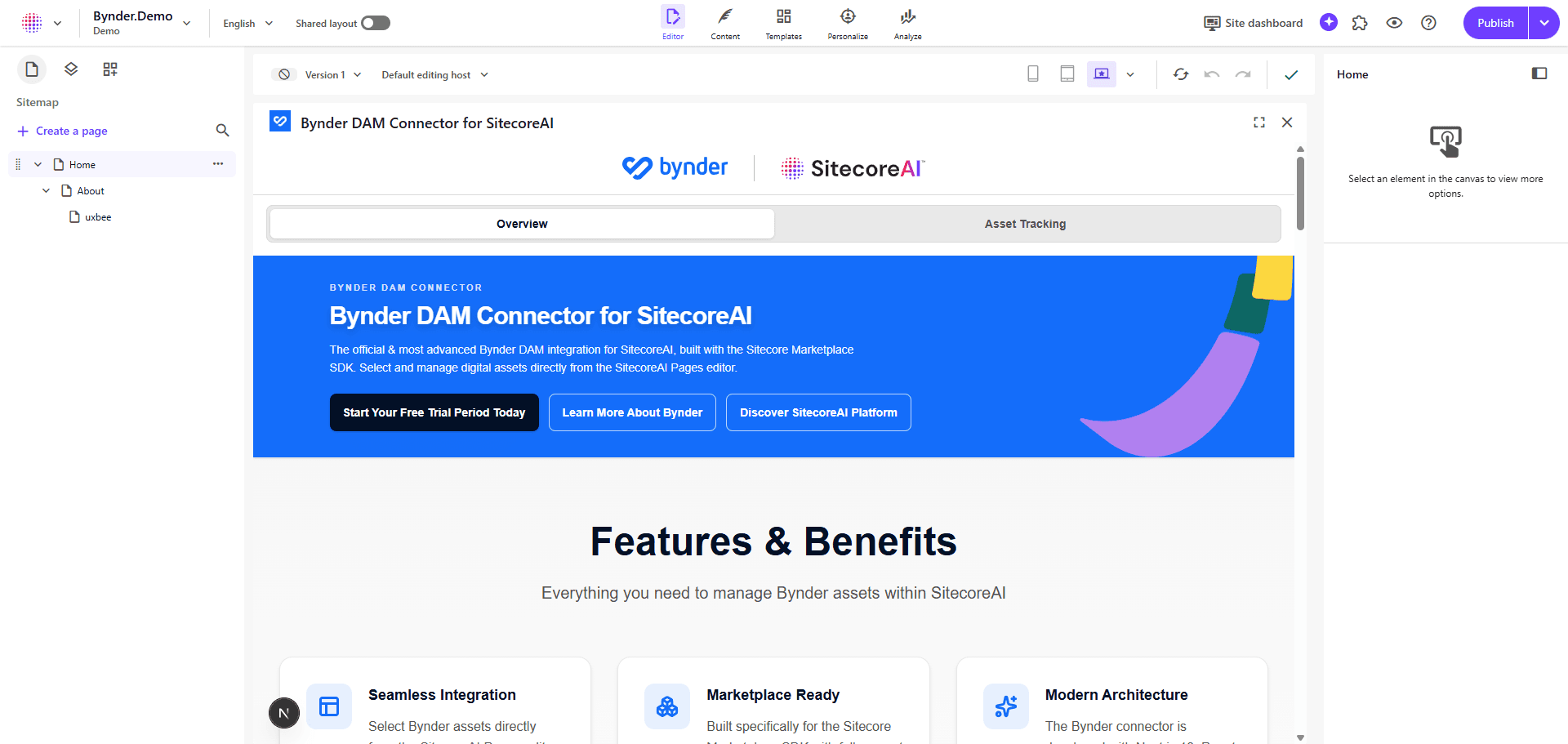
If the module isn't installed or configured, a warning appears on this tab. Use its Open the standalone app link to run the setup wizard. See Setup via Fullscreen App.
Asset Tracking Tab
The Asset Tracking tab lists the Bynder assets used on the page you are editing. It reads the page's Bynder fields and shows where each asset is located.
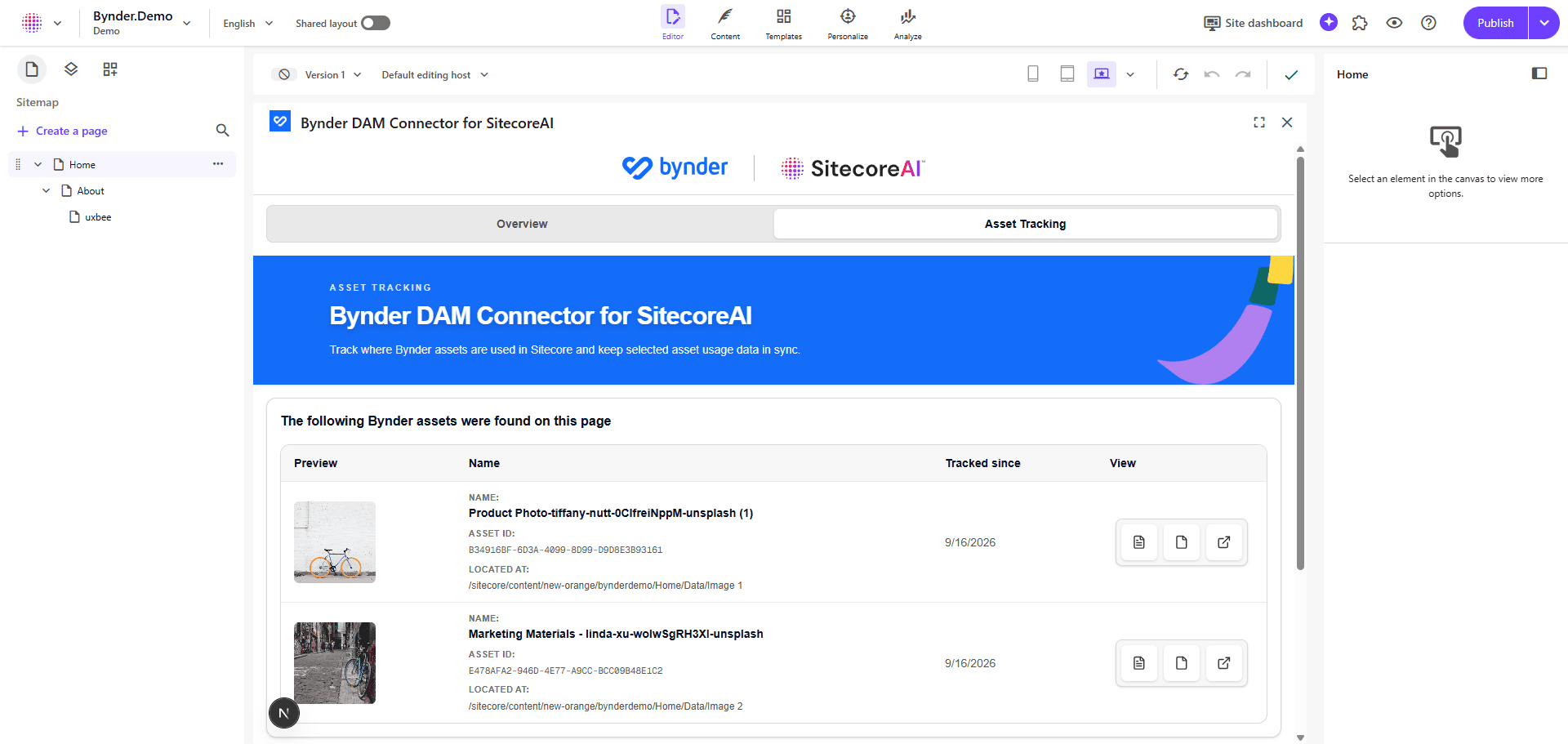
Under The following Bynder assets were found on this page, each asset shows:
| Column | Description |
|---|---|
| Preview | Thumbnail of the asset |
| Name | Asset name, asset ID, and the Sitecore path of the item that holds it |
| Tracked since | Date the usage was added in Bynder. Shows a spinner while loading, and Unknown date if the asset isn't tracked in Bynder yet |
| View | Quick links to the asset's locations |
The View buttons are the same as on the Asset Tracking dashboard: open the page in the Pages editor, open the page or datasource item in Content view, and open the asset in Bynder.
If the page has no Bynder assets, the tab shows No Bynder asset references were found on this page.
Enabling Asset Tracking
Asset Tracking can't be switched on from the panel. It is enabled in the fullscreen app, on the Bynder usage dashboard, and applies to the whole environment. If you have access, open the standalone app from the link on this tab, click Open dashboard, and switch on Tracking status. Otherwise ask a site admin. See Enabling Asset Tracking and Step 4: Enable Asset Tracking.
Until it is enabled, the tab explains that Asset Tracking is disabled and links to the standalone app.
It also tells you when:
- Asset Tracking is not available because the portal is a Webdam by Bynder portal.
- The Bynder OAuth credentials are missing a required scope or permission. See Asset Tracking troubleshooting.
Next Steps
- Setup via Fullscreen App - Install and configure the connector
- Asset Tracking - Enable Asset Tracking and search asset usage
- What Gets Created - Learn about templates and system items created