Asset Tracking
Asset Tracking registers where Bynder assets are used in SitecoreAI. When an editor selects a Bynder asset in a Bynder field, the connector reports that usage to Bynder through the Bynder Asset Usage API. You can then search from the fullscreen app for any Bynder asset and see which Sitecore pages and datasource items reference it.
Requirements
-
The connector is installed and the API key is configured. See Setup via Fullscreen App.
-
The Bynder OAuth credentials linked to your API key must grant these scopes:
asset.usage:readasset.usage:writeasset:read(used to resolve asset names and descriptions)
The connector checks these when Asset Tracking is enabled. If access is missing, the dashboard shows an error and selected assets are not synced until it is resolved in Bynder.
Opening the Dashboard
Open the Bynder DAM Connector for SitecoreAI from the Sitecore Marketplace. The overview has two entry points: Connector setup & settings and Asset Tracking dashboard.
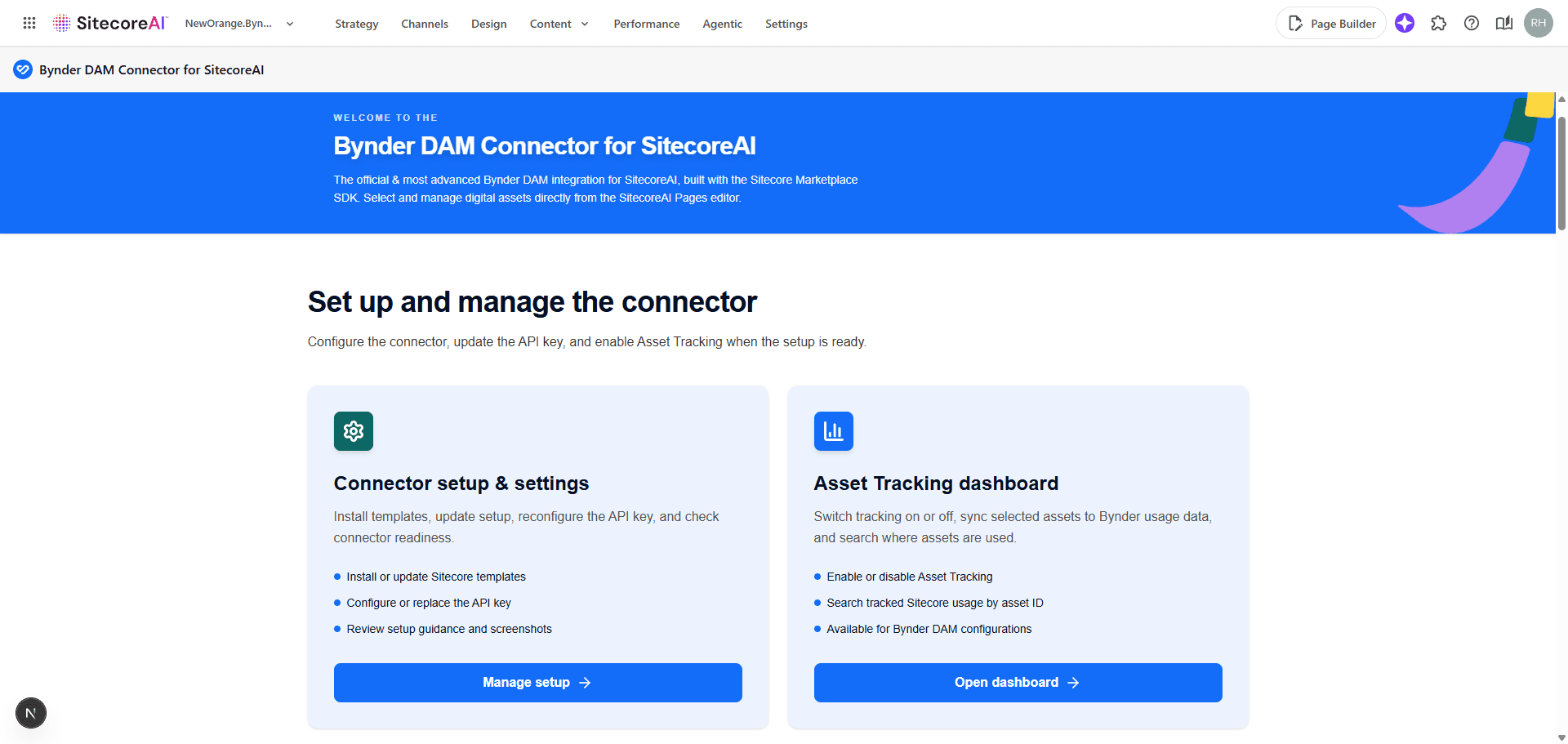
Click Open dashboard to open the Bynder usage dashboard. If the connector is not installed yet, the dashboard asks you to finish setup first.
Enabling Asset Tracking
Asset Tracking is off by default. On the dashboard, the Tracking status switch turns it on or off:
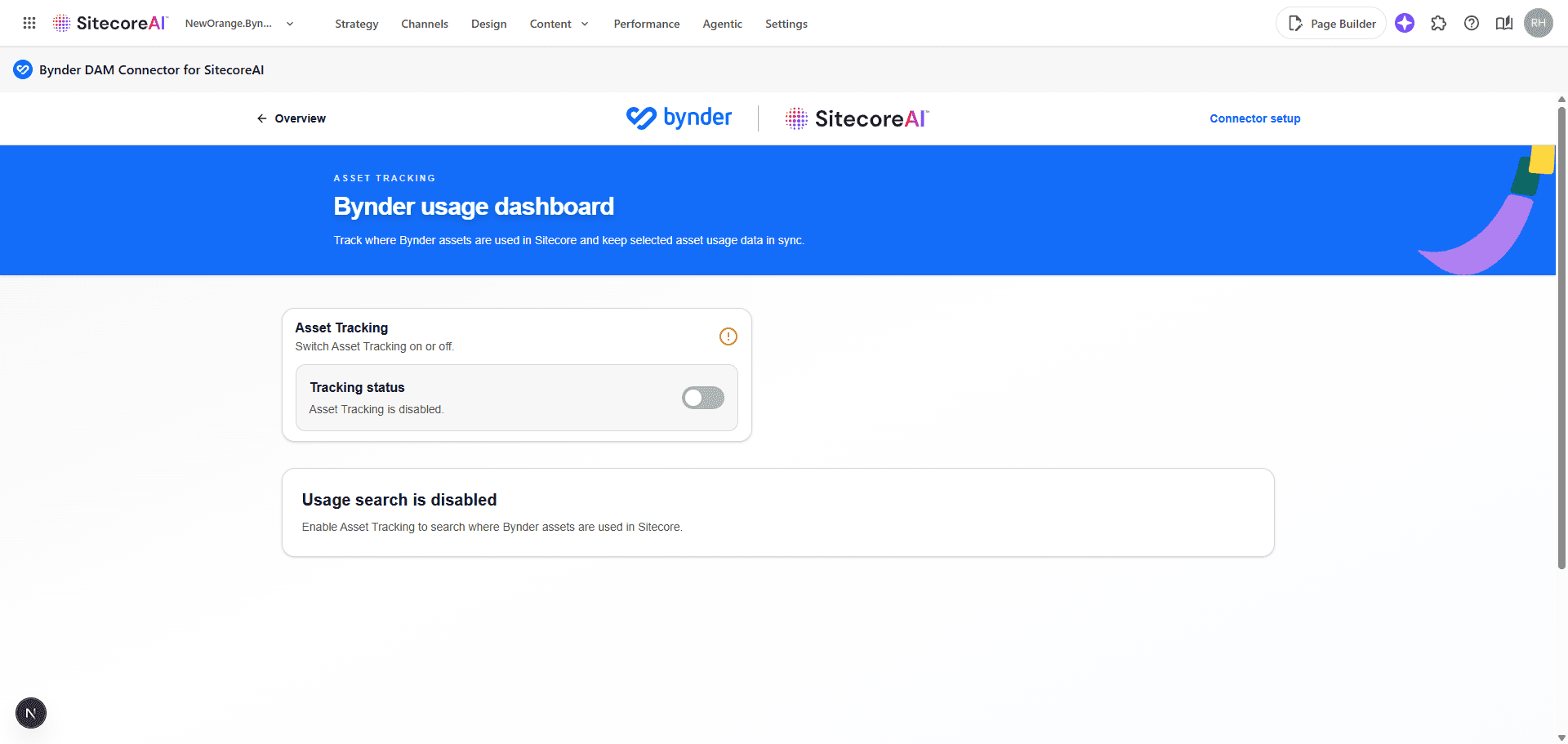
While tracking is disabled, usage search is unavailable. Turn the switch on and the status changes to Selected Bynder assets will be included in usage tracking. The search and results panels appear:
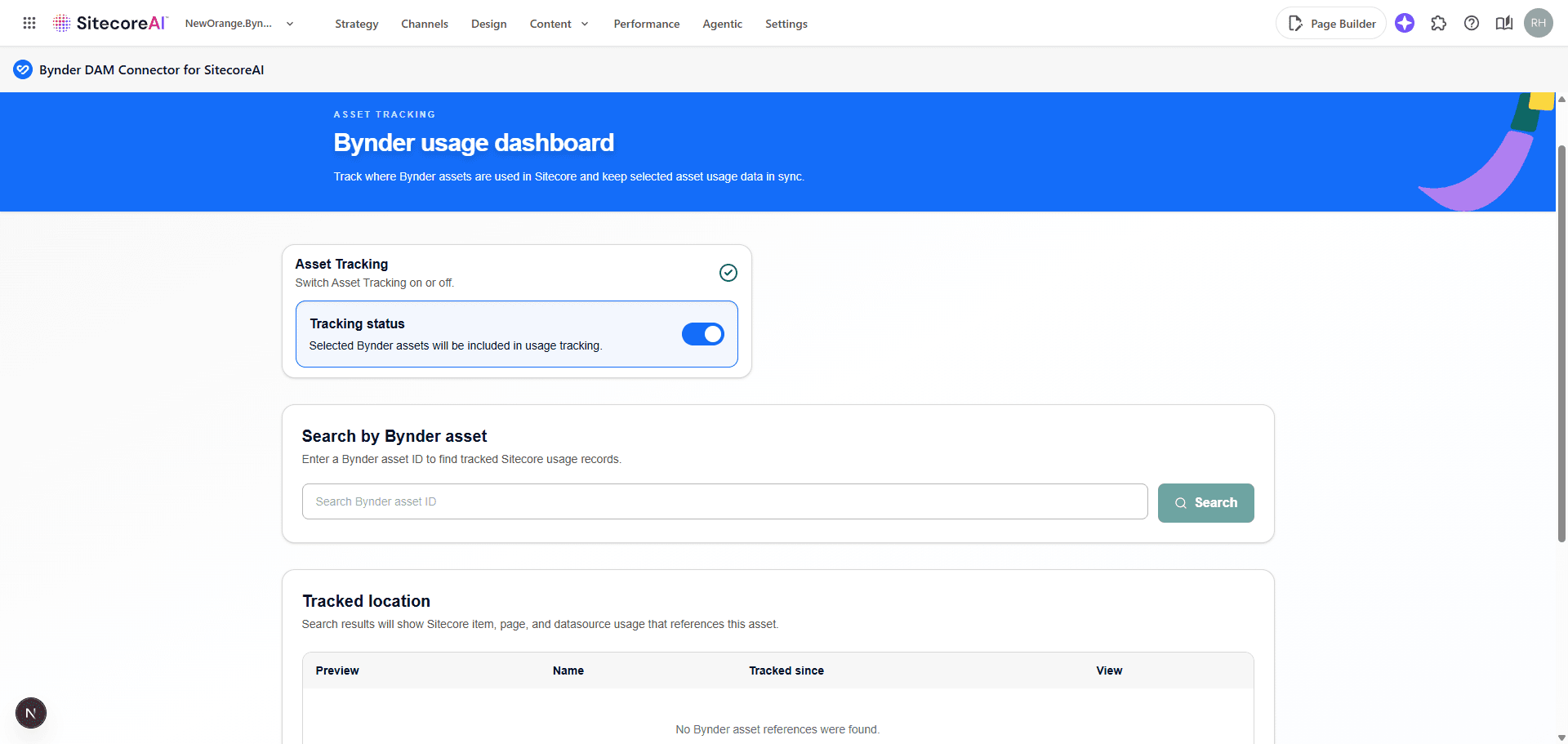
The setting is stored in the connector settings item in SitecoreAI, so it applies to the whole environment.
How Usage Is Tracked
With Asset Tracking enabled, usage is synced automatically while editors work in Pages. Editors don't need to do anything extra.
- Selecting an asset - After an asset is selected in a Bynder field and the field is updated, the connector registers the usage in Bynder. The registration includes the page, the datasource item, the field, and a link back to the page in Pages.
- Replacing or clearing an asset - When an asset in a field is replaced or removed, usage for the previous asset is removed from Bynder.
- When registration fails - The asset is still saved on the field. The field stays open with Asset usage not registered, so you can click Try again or Close. See Troubleshooting.
Searching Where an Asset Is Used
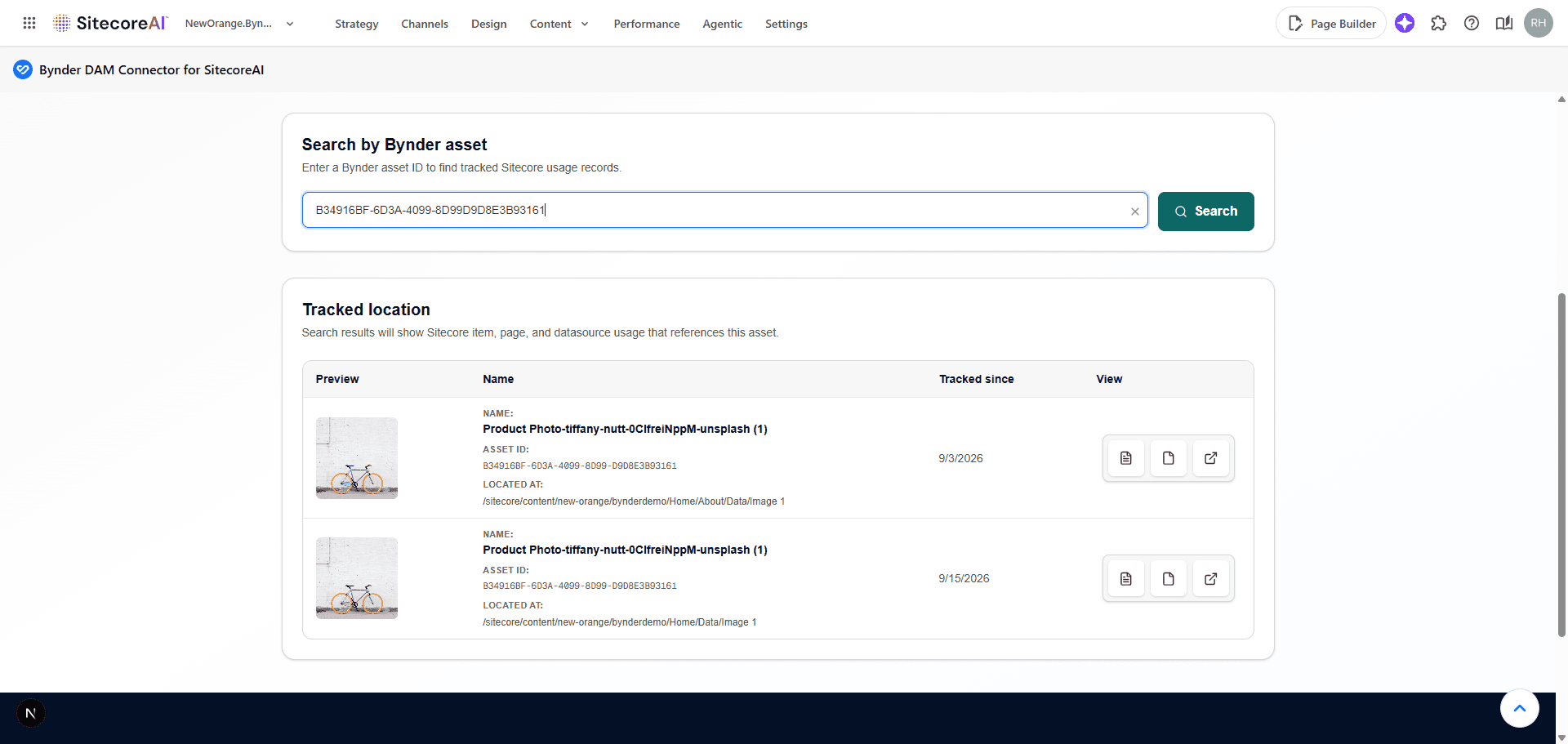
- Enter a Bynder asset ID in Search by Bynder asset.
- Click Search.
The Tracked location table lists each Sitecore location that references the asset:
| Column | Description |
|---|---|
| Preview | Thumbnail of the asset |
| Name | Asset name, asset ID, and the Sitecore path where it is located |
| Tracked since | Date the usage was first registered |
| View | Quick links, described below |
The View column offers up to three buttons:
- View Page in Page Builder (Editor) - Opens the page in the Pages editor.
- View Page / Datasource Content in Page Builder (Content) - Opens the page, or the datasource item if the asset is used on one, in Content view.
- View in Bynder - Opens the asset in your Bynder portal.
If an asset is not tracked anywhere, the table shows No tracked Sitecore usage was found for asset ID.
Troubleshooting
| Message | Cause |
|---|---|
| Bynder OAuth credentials are not authorized | The OAuth app tied to the API key could not obtain a token. |
| Bynder OAuth app is missing a required scope | The OAuth app lacks one of the scopes listed under Requirements. |
| Bynder Statistics access is missing | The Bynder portal user assigned to the API key lacks the Statistics (View Portal Insights) permission. |
| Asset Tracking is not available for Webdam by Bynder | The connected portal is a Webdam by Bynder portal. |
See also Troubleshooting.