Portal Dashboard Guide
The Bynder integration portal dashboard is your central control hub for managing your subscription, API credentials, asset selector settings, and support.
To log in to your portal account, see Sign Up & Login.
Dashboard Overview
The dashboard consists of four main sections:

- Integration - Configure API keys, asset selector settings, and Bynder portal details
- Asset Tracking - Monitor which assets are used across your implementations (XM/XP connector only)
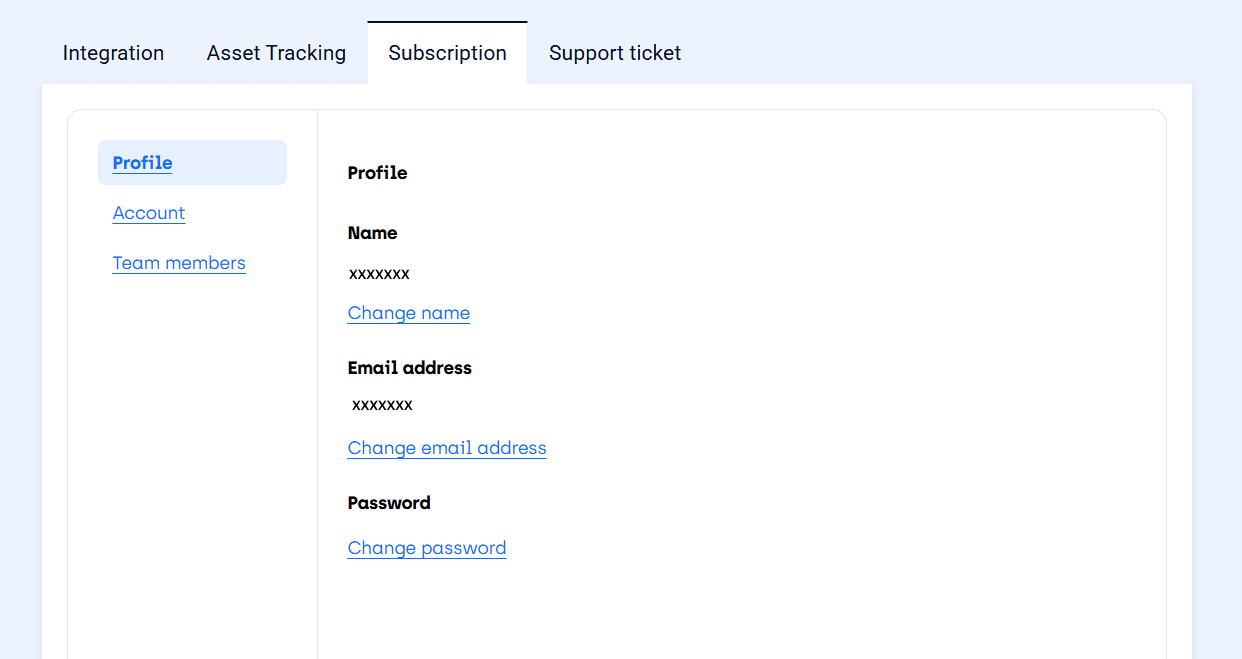
- Subscription - View and manage your subscription details
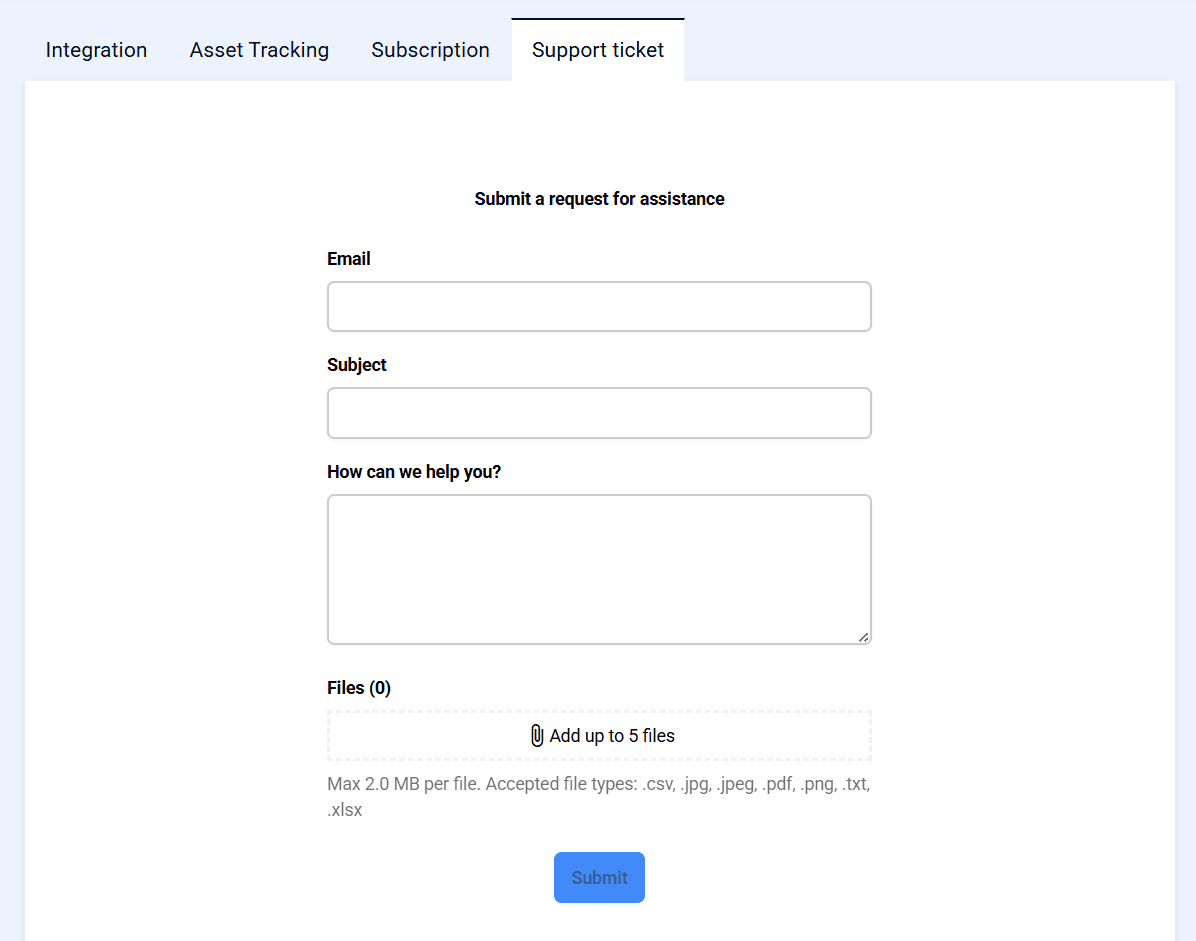
- Support ticket - Submit support tickets and get help
Integration Settings
API Key
This is where you find your unique API key used to authenticate with Bynder connectors.

| Field | Description |
|---|---|
| API Key | Your auto-generated read-only API key. Click to copy to clipboard. |
This API key is required when configuring any Bynder connector (SitecoreAI or XM/XP). See your connector's configuration guide for where to enter this key.
Bynder Settings
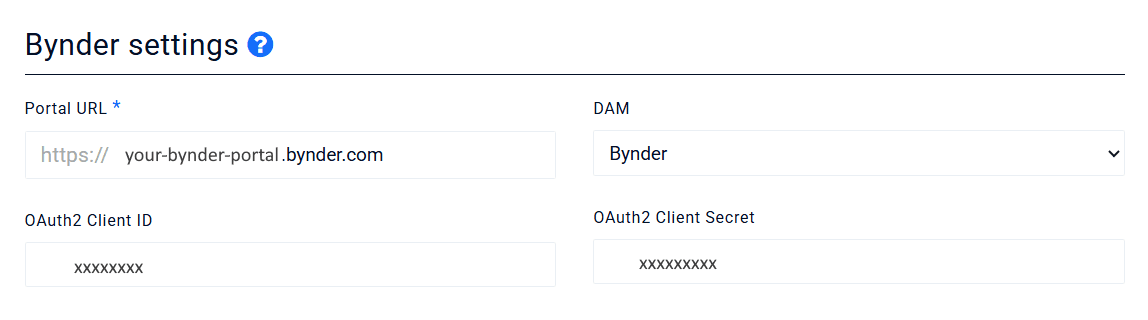
Configure the details for your organization's Bynder DAM portal.
| Field | Description |
|---|---|
| Portal URL | The domain of your Bynder or Webdam portal |
| DAM | Select the type of DAM: Bynder or Webdam. Webdam is supported by the Sitecore connectors only, not by the Umbraco connector |
| OAuth2 Client ID | Client ID for OAuth2 app (Bynder only). Used for tracking features |
| OAuth2 Client Secret | Secret for OAuth2 app (Bynder only). Used for tracking features |
Creating an OAuth2 App in Bynder
If you need to enable asset uploads or tracking features, you must create an OAuth App in your Bynder Portal Settings.
Steps to create an OAuth App:
- Navigate to OAuth Apps section:
https://[your-bynder-domain]/pysettings/oauth2/ - Click Add new app
- Enter your desired Application name
- Select grant type: Client Credentials
- Select a user that represents the permissions the app will have
- Select the required scopes:
asset:readasset.usage:readasset.usage:writecollection:readmeta.assetbank:readmeta.assetbank:writemeta.workflow:read
- Click Register application
- Copy the Client ID and Client Secret tokens into your dashboard
For full details, see Create your OAuth Apps (opens in a new tab) on the Bynder Support portal.
Asset Selector Global Settings
Global settings applied to all instances of the asset selector.

| Field | Description |
|---|---|
| Language | The language interface for the asset selector (e.g., English, Dutch, German, French, Spanish) |
Asset Selector Field Settings
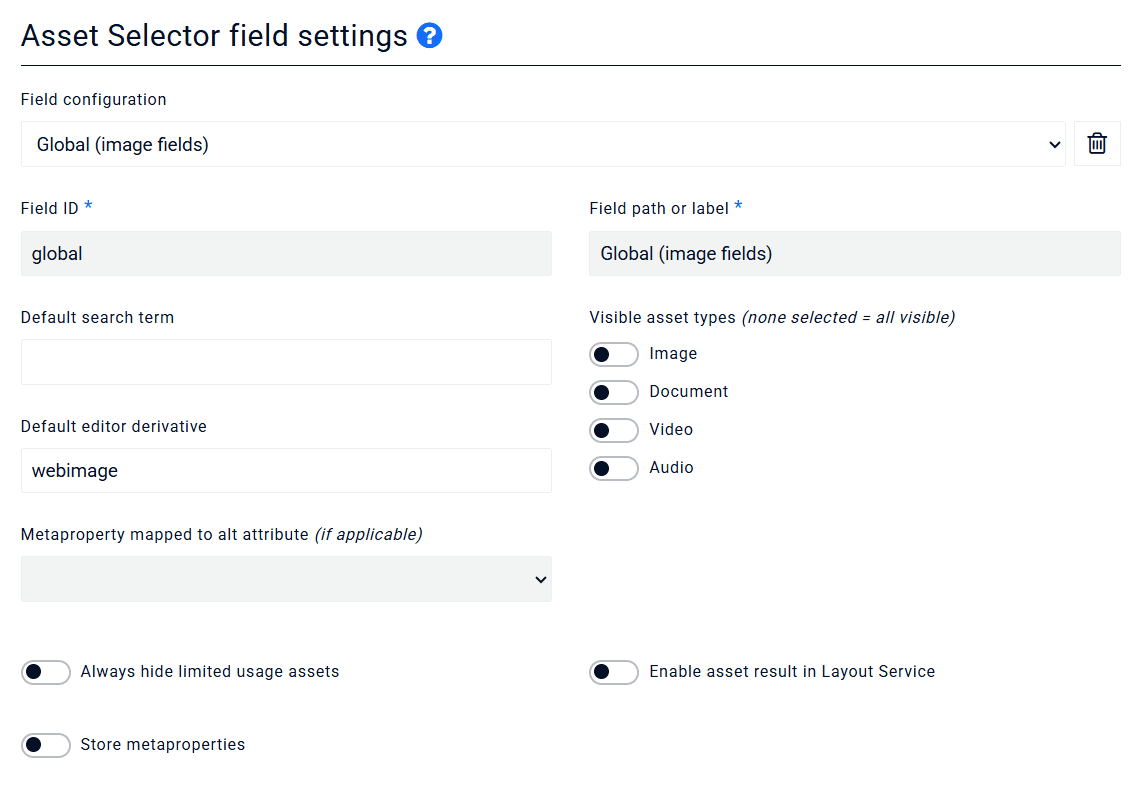
Per-field settings for the asset selector. These allow you to customize the asset selector behavior for specific content fields.
| Field | Description |
|---|---|
| Field | The specific content field these settings apply to |
| Default search term | Automatically populate the search when the asset selector opens for this field |
| Visible asset types | Restrict which asset types are visible (e.g., image, video, document, audio) |
| Always hide limited usage assets | Hide assets marked with "limited usage" restrictions |
| Enable asset result in Layout Service | Include complete asset data in API responses (affects performance) |
There is one Global field setting that acts as the default for all fields without explicit settings.
Advanced Settings

| Field | Description |
|---|---|
| Enable Remote Logging | Allow our support team to view logs remotely to help diagnose issues |
Asset Tracking
Asset Tracking dashboard settings are currently available for the XM/XP connector only.
For setup details and screenshots, see:
Subscription Settings
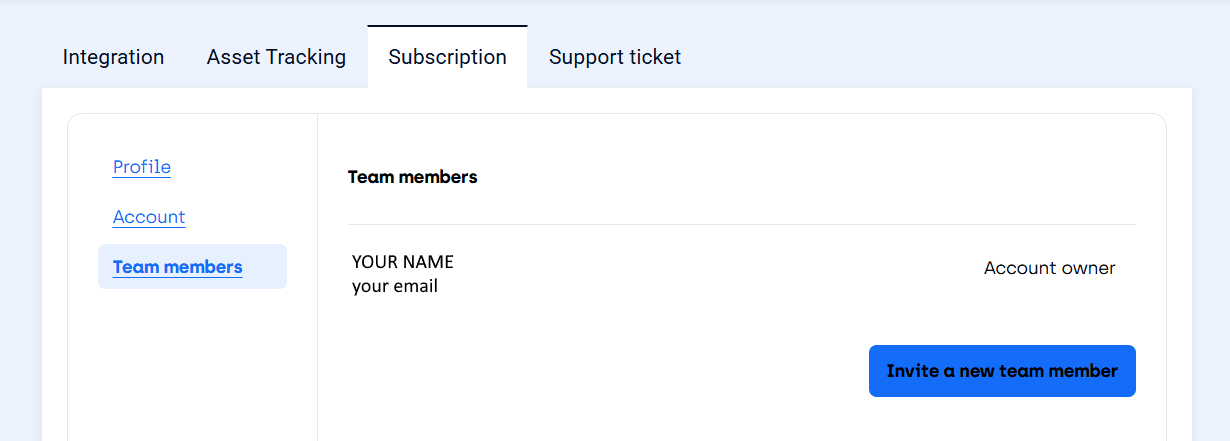
View your current subscription status, billing information, and subscription details.
For more details, see Subscription Management.
Support Tickets
Submit support tickets and access help resources directly from the portal.
For more information, see Support & Contact.