Setup via Fullscreen App
The fullscreen app is a full screen interface that allows you to install the Bynder connector for SitecoreAI.
Initial Setup State
When you first open the fullscreen app, if the module isn't installed, you'll see a setup banner:

Click Install Module to begin the setup wizard.
Step 1: Install Templates & Items
The wizard starts by installing the required templates and configuration items:
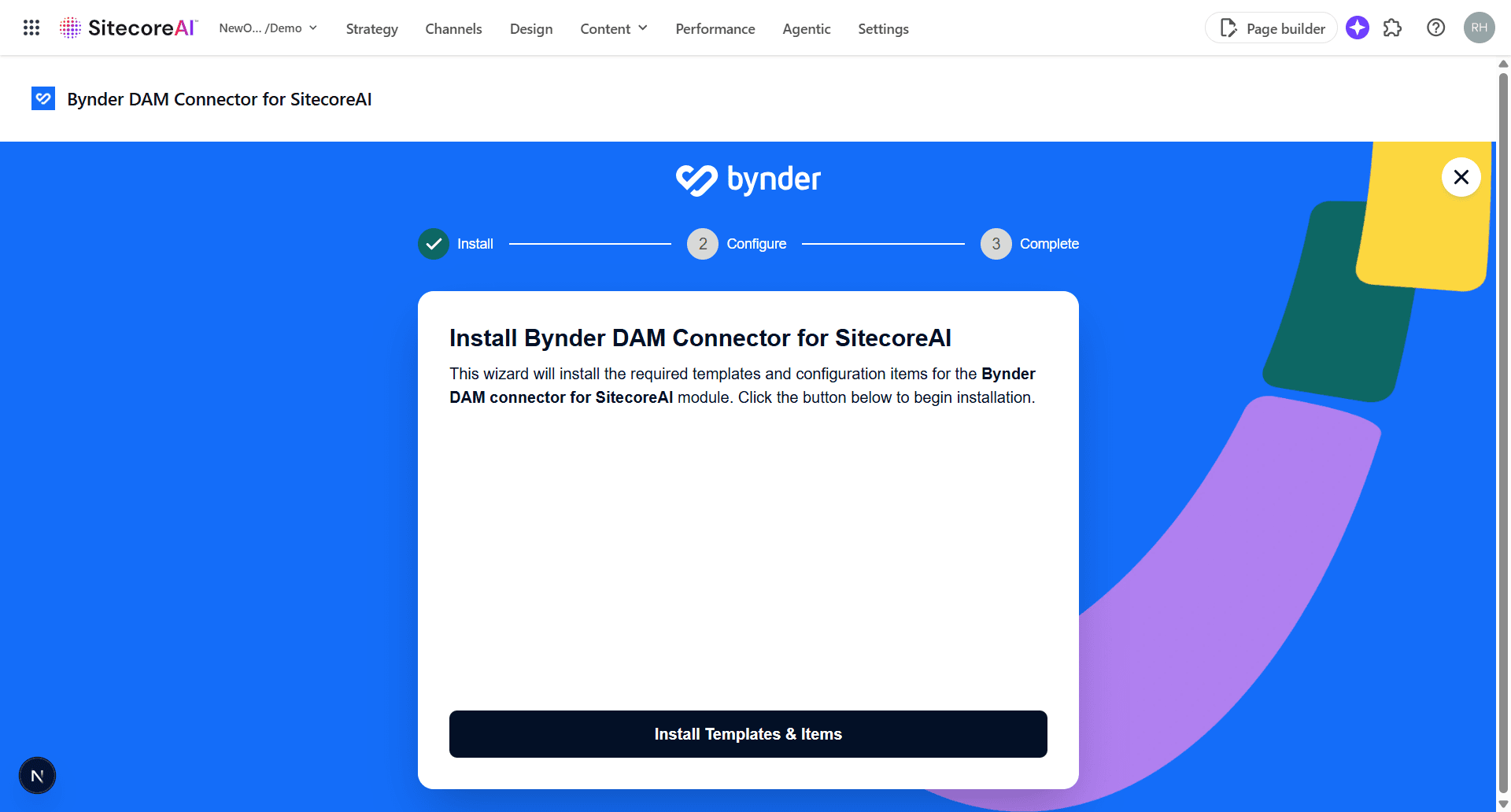
The wizard automatically:
- Creates the required Sitecore templates for the Bynder Connector for SitecoreAI
- Creates the system folder and settings item for the Bynder Connector for SitecoreAI
- Resumes Installation: If interrupted, the wizard detects completed steps and resumes from where it left off
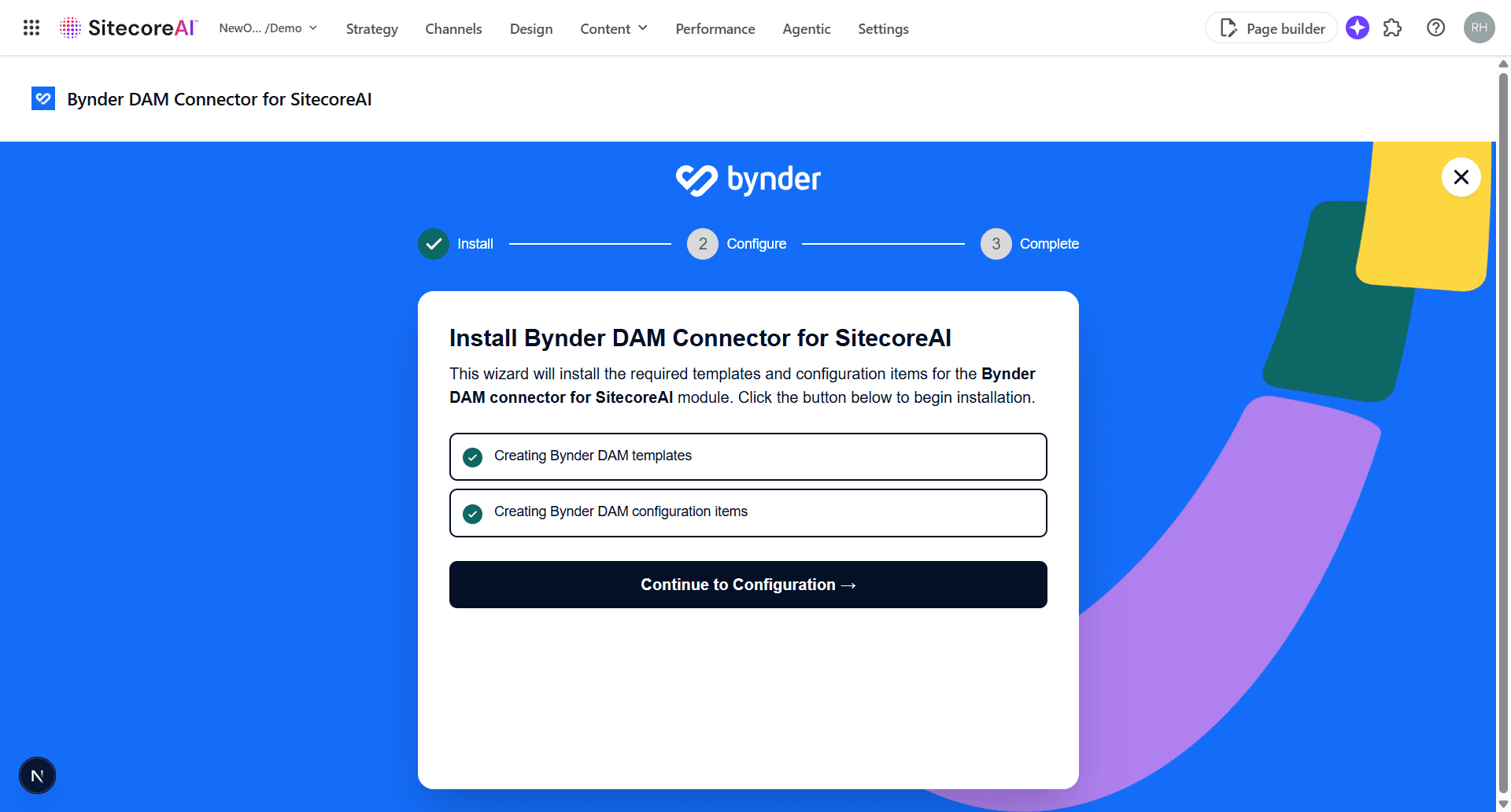
- Reports Progress: Real-time status for each installation step
- Provides Retry: Retry button resumes from the last successful step
Once the template and configuration items are installed, you should see:
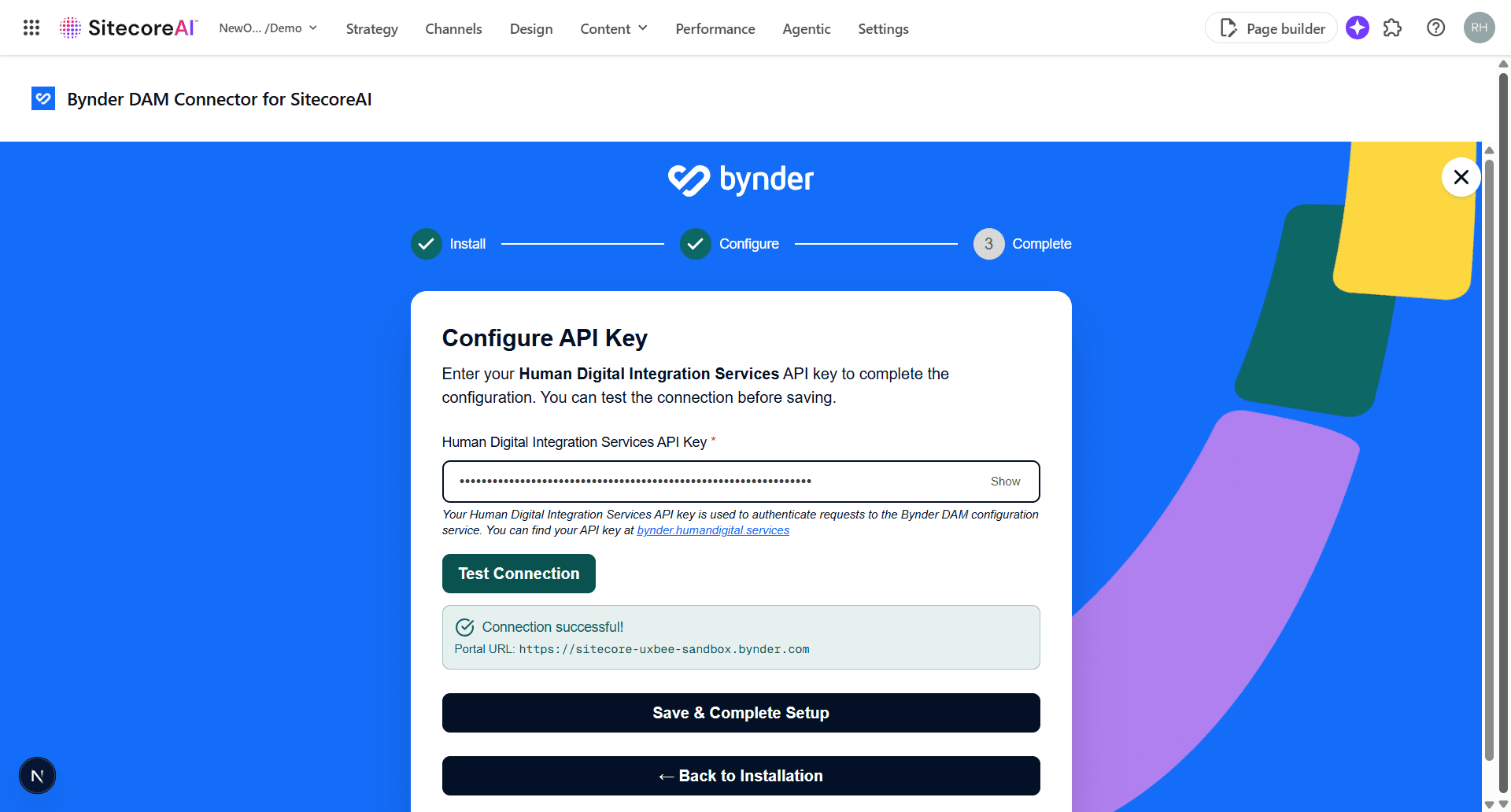
Step 2: Configure API Key
Enter your integration API key to complete the configuration.
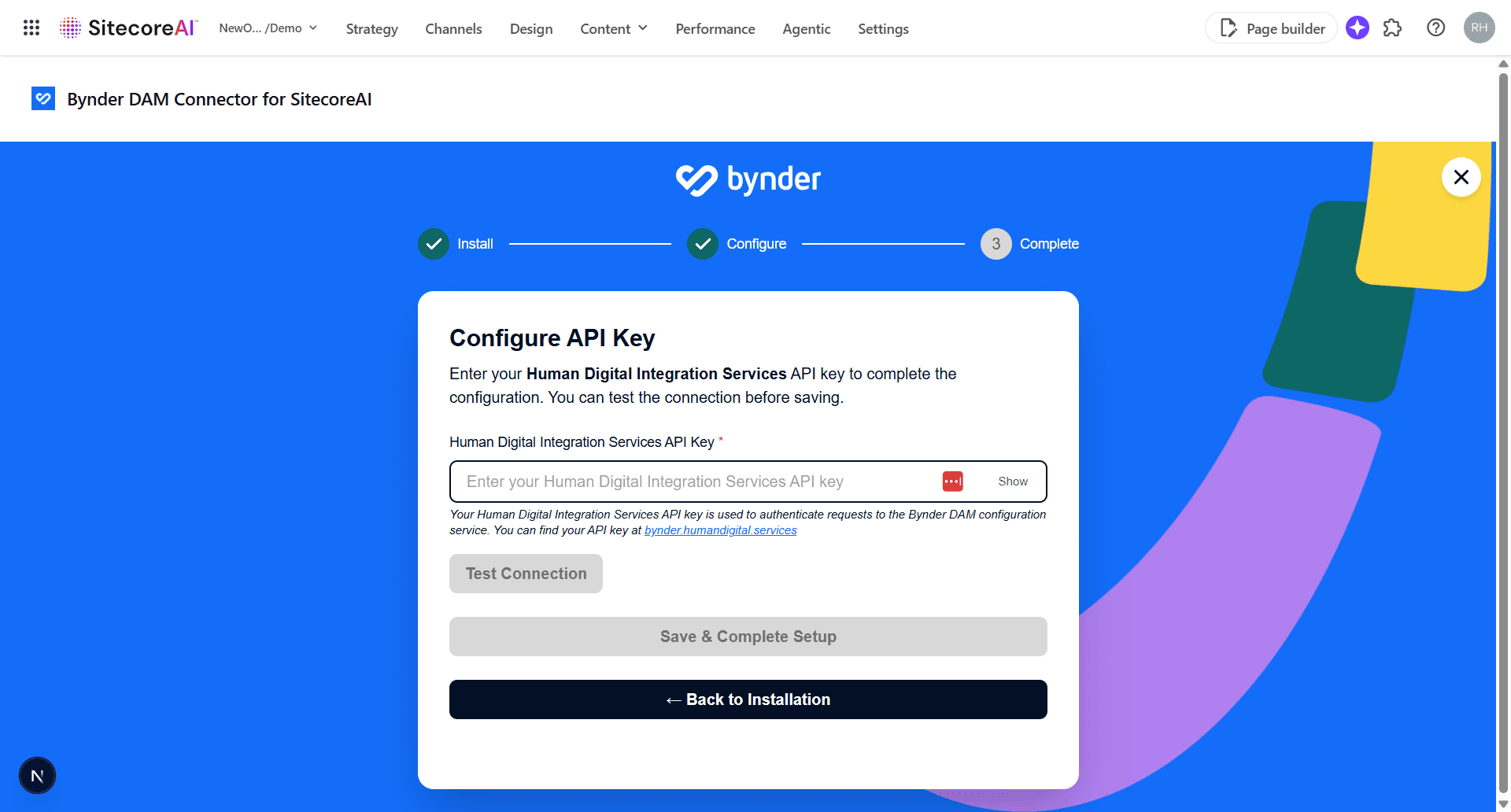
When you enter the Bynder integration portal API key, the Test Connection and Save and Complete Setup buttons become enabled.
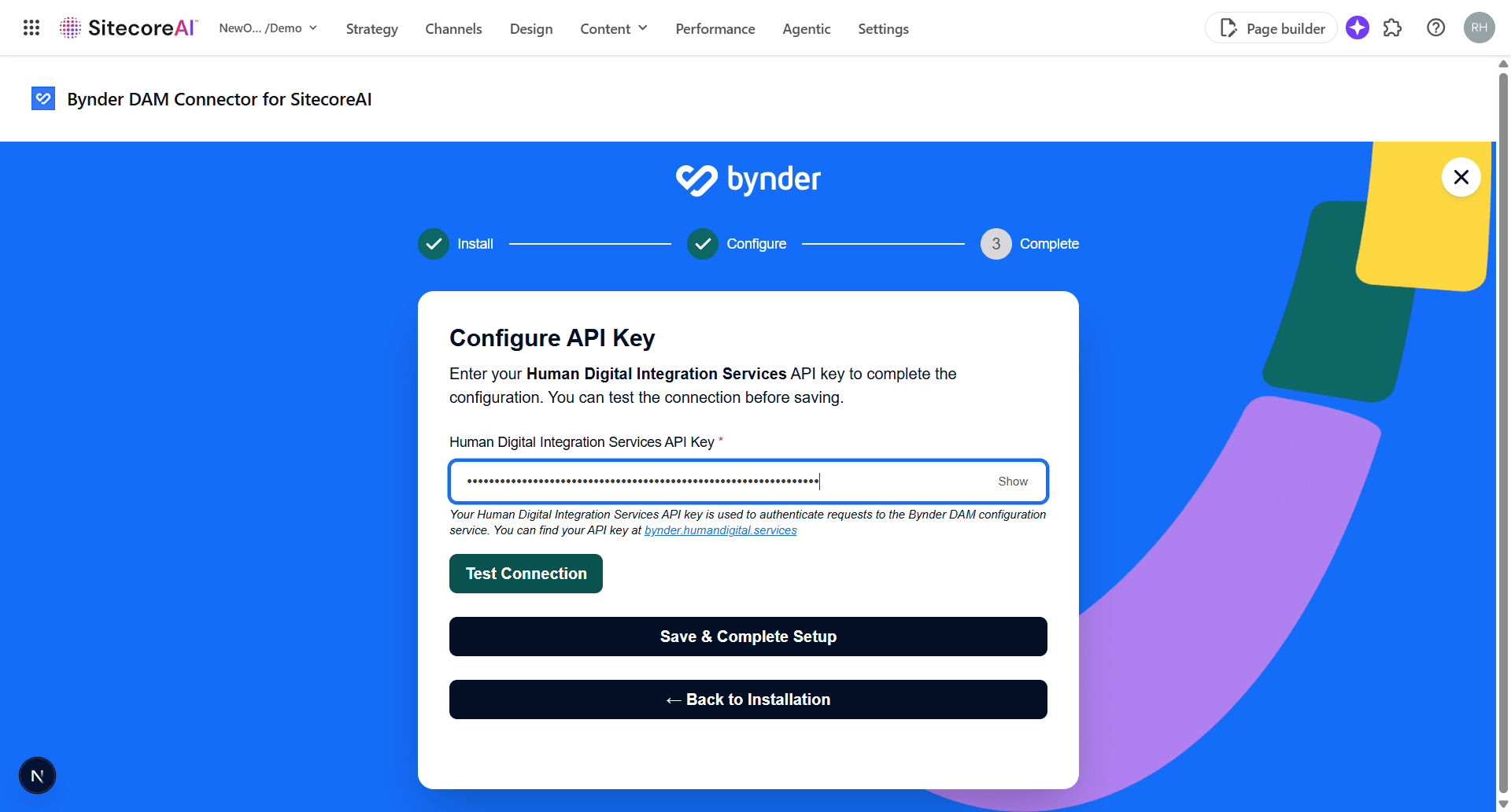
The wizard:
- Tests Connection: Validates the API key before saving
- Displays Portal: Shows the connected Bynder portal after validation
- Secure Storage: Saves the API key to SitecoreAI. See Updating Configuration for details.
- Password Toggle: Show/hide API key for security
Step 3: Completion
After successful configuration:
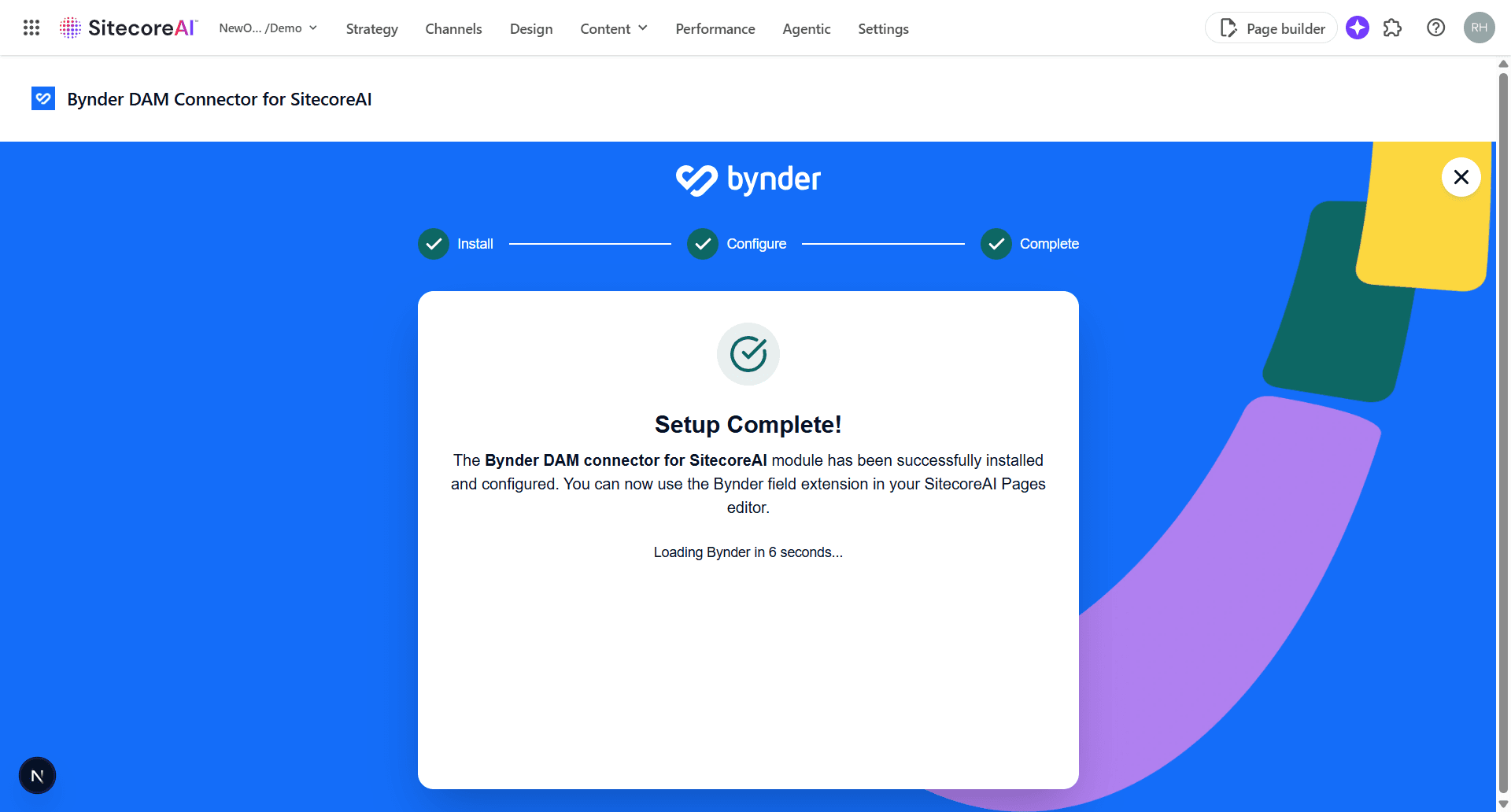
- Auto-Redirect: Returns to homepage with
setupComplete=truequery parameter - Success Banner: Displays success message with next steps
- Dismissible: Users can dismiss the banner or continue
Now that the module is installed correctly, you get notified that the module installed successfully.

You can click the link in the green banner to complete the next steps to start using it.
Next Steps
- What Gets Created - Learn about templates and system items created