What Gets Created
Once you install the Bynder DAM Connector for SitecoreAI through either the Pages Context Panel setup or Fullscreen setup, the installation process creates several templates, configuration items, and system folders in your SitecoreAI instance. This page provides a reference guide for everything that gets created.
Sitecore Templates
Eight templates are created in /sitecore/templates/Modules/BynderDam/:
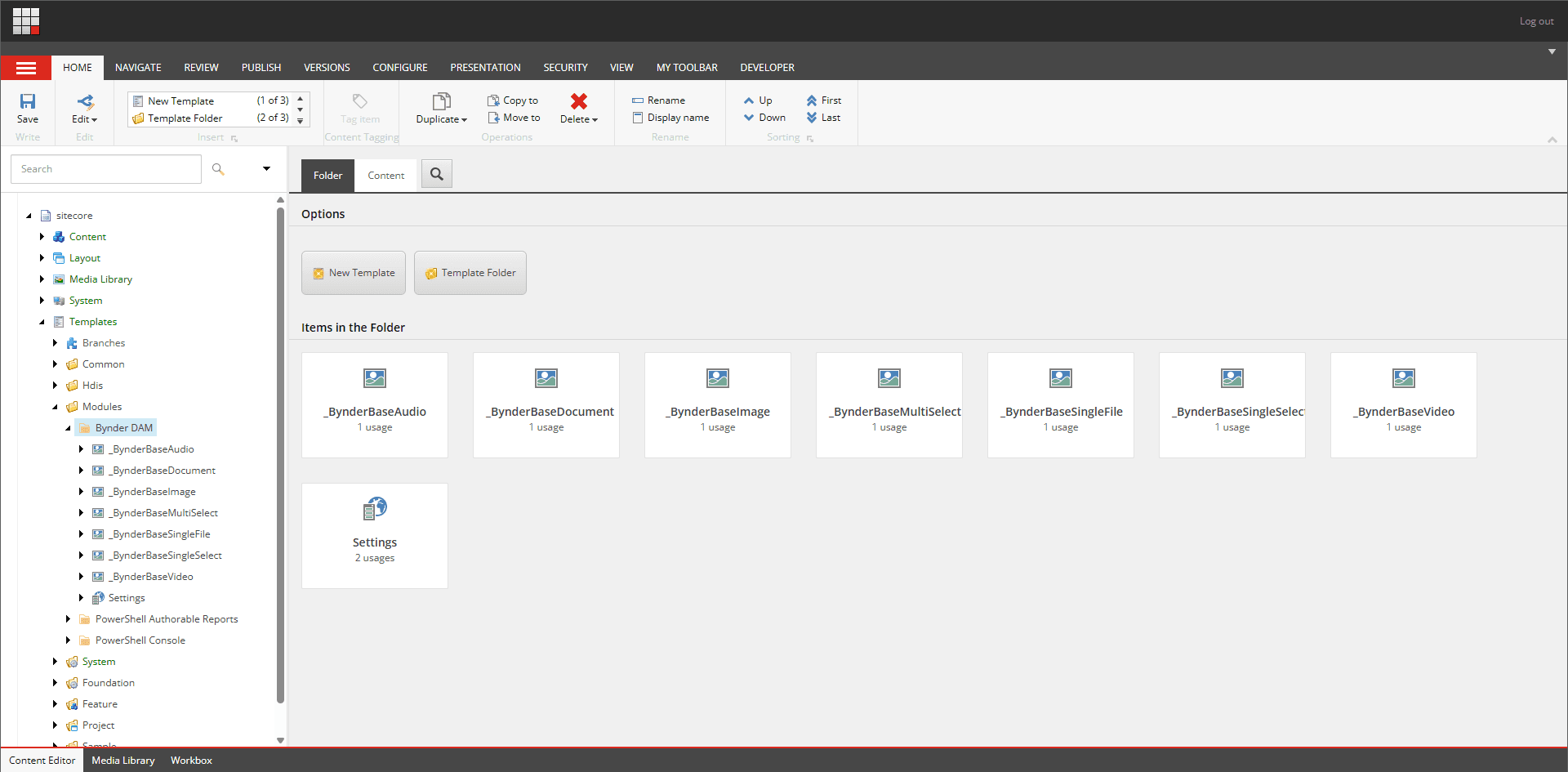
bd_Settings Template
- Path:
/sitecore/templates/Modules/BynderDam/bd_Settings - Purpose: Stores the Bynder integration portal API key
- Fields:
ApiKey(Single-Line Text) - Your Bynder integration portal API key
bd_BynderBaseSingleFile Template
- Path:
/sitecore/templates/Modules/BynderDam/bd_BynderBaseSingleFile - Purpose: Base template for single file asset selection with DAT support
- Mode: SingleSelectFile (supports Digital Asset Tags)
- Fields:
BynderDamSingleFile(Plugin) - Asset selector field (single file selection)- Type: Plugin
- Source: pub-acdcf8ff-54f9-4269-977a-c4be5b8fde10
bd_BynderBaseSingleSelect Template
- Path:
/sitecore/templates/Modules/BynderDam/bd_BynderBaseSingleSelect - Purpose: Base template for single asset selection
- Mode: SingleSelect (select one asset)
- Fields:
BynderDamSingleSelect(Plugin) - Asset selector field (single asset selection)- Type: Plugin
- Source: pub-acdcf8ff-54f9-4269-977a-c4be5b8fde10
bd_BynderBaseMultiSelect Template
- Path:
/sitecore/templates/Modules/BynderDam/bd_BynderBaseMultiSelect - Purpose: Base template for multiple asset selection
- Mode: MultiSelect (select multiple assets)
- Fields:
BynderDamMultiSelect(Plugin) - Asset selector field (multiple asset selection)- Type: Plugin
- Source: pub-acdcf8ff-54f9-4269-977a-c4be5b8fde10
bd_BynderBaseImage Template
- Path:
/sitecore/templates/Modules/BynderDam/bd_BynderBaseImage - Purpose: Base template for image-only asset selection
- Mode: SingleSelect
- Asset Types: image
- Fields:
BynderDamImage(Plugin) - Asset selector field (image only)- Type: Plugin
- Source: pub-acdcf8ff-54f9-4269-977a-c4be5b8fde10
bd_BynderBaseVideo Template
- Path:
/sitecore/templates/Modules/BynderDam/bd_BynderBaseVideo - Purpose: Base template for video-only asset selection
- Mode: SingleSelect
- Asset Types: video
- Fields:
BynderDamVideo(Plugin) - Asset selector field (video only)- Type: Plugin
- Source: pub-acdcf8ff-54f9-4269-977a-c4be5b8fde10
bd_BynderBaseAudio Template
- Path:
/sitecore/templates/Modules/BynderDam/bd_BynderBaseAudio - Purpose: Base template for audio-only asset selection
- Mode: SingleSelect
- Asset Types: audio
- Fields:
BynderDamAudio(Plugin) - Asset selector field (audio only)- Type: Plugin
- Source: pub-acdcf8ff-54f9-4269-977a-c4be5b8fde10
bd_BynderBaseDocument Template
- Path:
/sitecore/templates/Modules/BynderDam/bd_BynderBaseDocument - Purpose: Base template for document-only asset selection
- Mode: SingleSelect
- Asset Types: document
- Fields:
BynderDamDocument(Plugin) - Asset selector field (document only)- Type: Plugin
- Source: pub-acdcf8ff-54f9-4269-977a-c4be5b8fde10
Standard Values Mode Configuration
Each base template stores its configuration in the respective field on __Standard Values:
| Template | Field | Standard Values JSON |
|---|---|---|
bd_BynderBaseSingleFile | BynderDamSingleFile | {"mode":"SingleSelectFile"} |
bd_BynderBaseSingleSelect | BynderDamSingleSelect | {"mode":"SingleSelect"} |
bd_BynderBaseMultiSelect | BynderDamMultiSelect | {"mode":"MultiSelect"} |
bd_BynderBaseImage | BynderDamImage | {"mode":"SingleSelect","assetTypes":["image"]} |
bd_BynderBaseVideo | BynderDamVideo | {"mode":"SingleSelect","assetTypes":["video"]} |
bd_BynderBaseAudio | BynderDamAudio | {"mode":"SingleSelect","assetTypes":["audio"]} |
bd_BynderBaseDocument | BynderDamDocument | {"mode":"SingleSelect","assetTypes":["document"]} |
Bynder DAM Settings
A configuration item is created at:
/sitecore/system/Modules/BynderDam/bd_Settings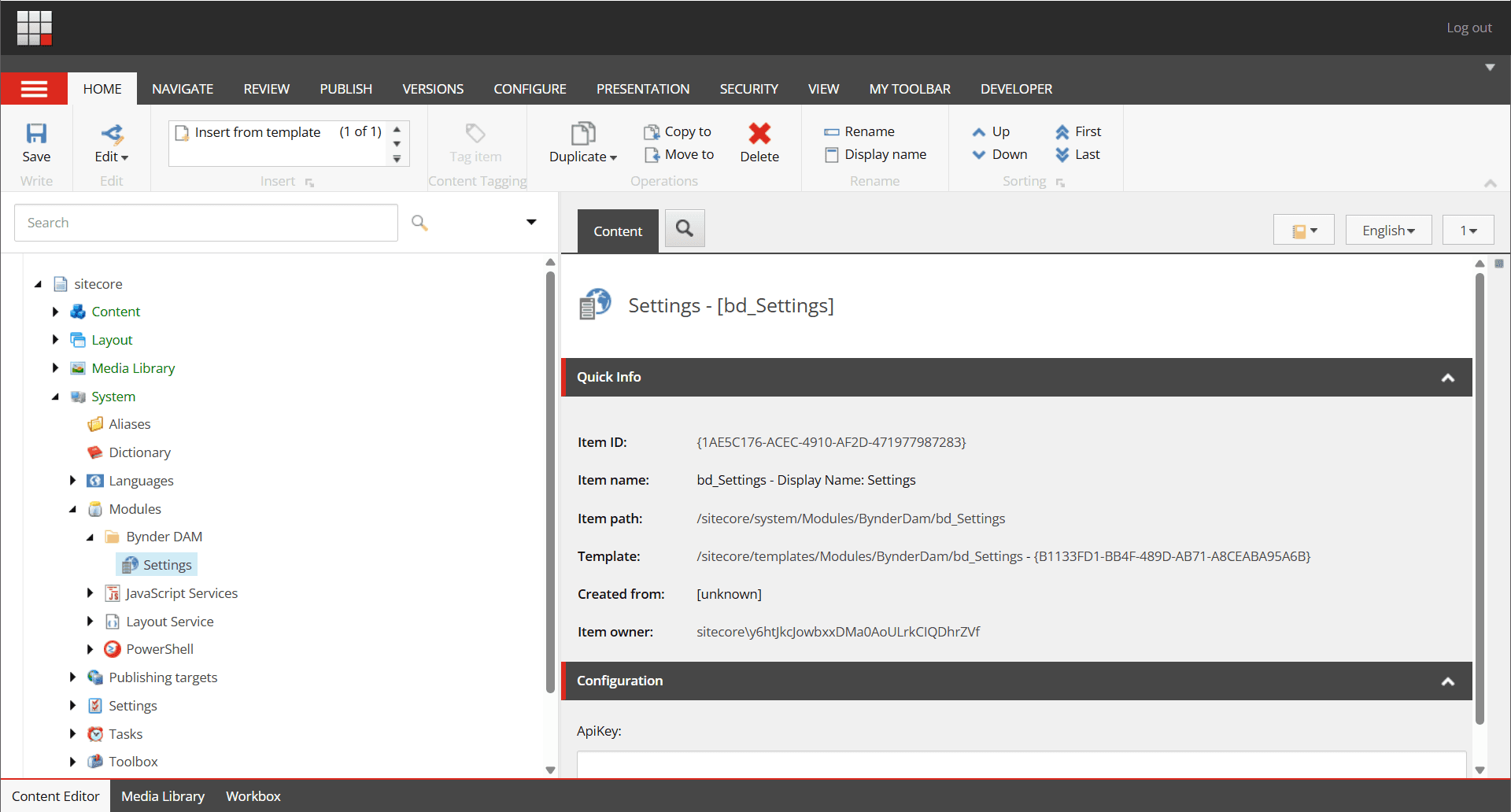
This item stores your Bynder integration portal API key securely in Sitecore's content tree, which the connector retrieves during initialization. The API key is stored here, eliminating the need for environment variable configuration.
Updating Configuration
To update the API key after initial setup:
- Navigate to
/sitecore/system/Modules/BynderDam/bd_Settingsin Sitecore Content Editor - Edit the
ApiKeyfield - Save the item
- Refresh any open field extensions or app instances
Global Configuration
The API key is stored globally in SitecoreAI. All users and content items share the same Bynder portal connection.
Next Steps
- Custom Field Types - Set up the Bynder field in Sitecore templates before content authors can select assets. This is a developer/admin setup task (template modeling), including how to add and configure custom Plugin fields.
- Plugin Field Options - Configure field behavior
- Usage Guide - Learn how content authors use the connector to select assets
- Troubleshooting - Solutions for common issues