Integration Dashboard
The integration dashboard includes both shared portal settings and XP/XM-specific settings. This page focuses on what is specific to XP/XM behavior.
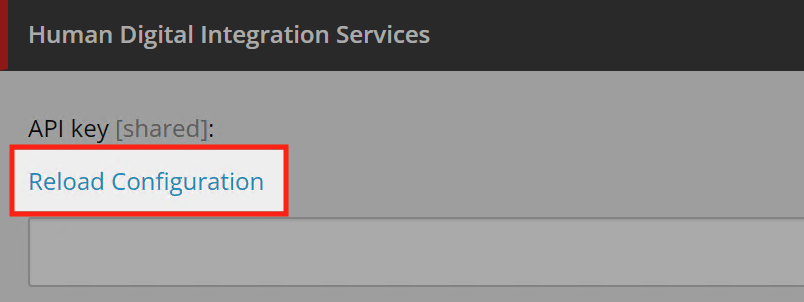
Changes made in the integration dashboard are not available in Sitecore until you reload the configuration or the Sitecore application pool is recycled.
Portal Dashboard Guide
For shared account and dashboard documentation (login, subscription, support, API credentials, generic dashboard sections), see:
📌 Portal Dashboard Guide
XP/XM-Specific Dashboard Settings
The following dashboard settings directly affect XP/XM connector behavior and should be configured with XP/XM use cases in mind.
Asset Selector Field Settings (XP/XM)
XP/XM uses field-level selector settings for behavior such as default search terms, visible asset types, and metaproperty storage behavior in rendered output.
See usage examples in:
Asset Tracking (XP/XM)
XP/XM asset tracking depends on integration dashboard tracking settings together with Sitecore-side tracking integration.
The detailed setup and search workflows are documented in:
That page covers:
- Enabling Asset Tracking and setting Sitecore CM domain
- Search by Bynder asset
- Search by Sitecore item
- No-result behavior and troubleshooting context
OAuth2 Client Settings for Upload/Tracking (XP/XM)
For XP/XM, missing OAuth2 settings in the dashboard can disable parts of upload and asset tracking features.
See related Sitecore notifications in:
Reloading Configuration in Sitecore
After making changes in the integration dashboard, you must reload the configuration in Sitecore for the changes to take effect.
See Sitecore Configuration for details on how to reload your settings.
XP/XM Specific Configuration
For XP/XM-specific connector configuration in Sitecore, see:
- Sitecore Configuration - How to configure the API key and connector settings in Sitecore
- Asset Tracking - How the connector tracks asset usage in XP/XM